Restore and organize an old photograph
A clearer version of an old photo, saved and shareable.
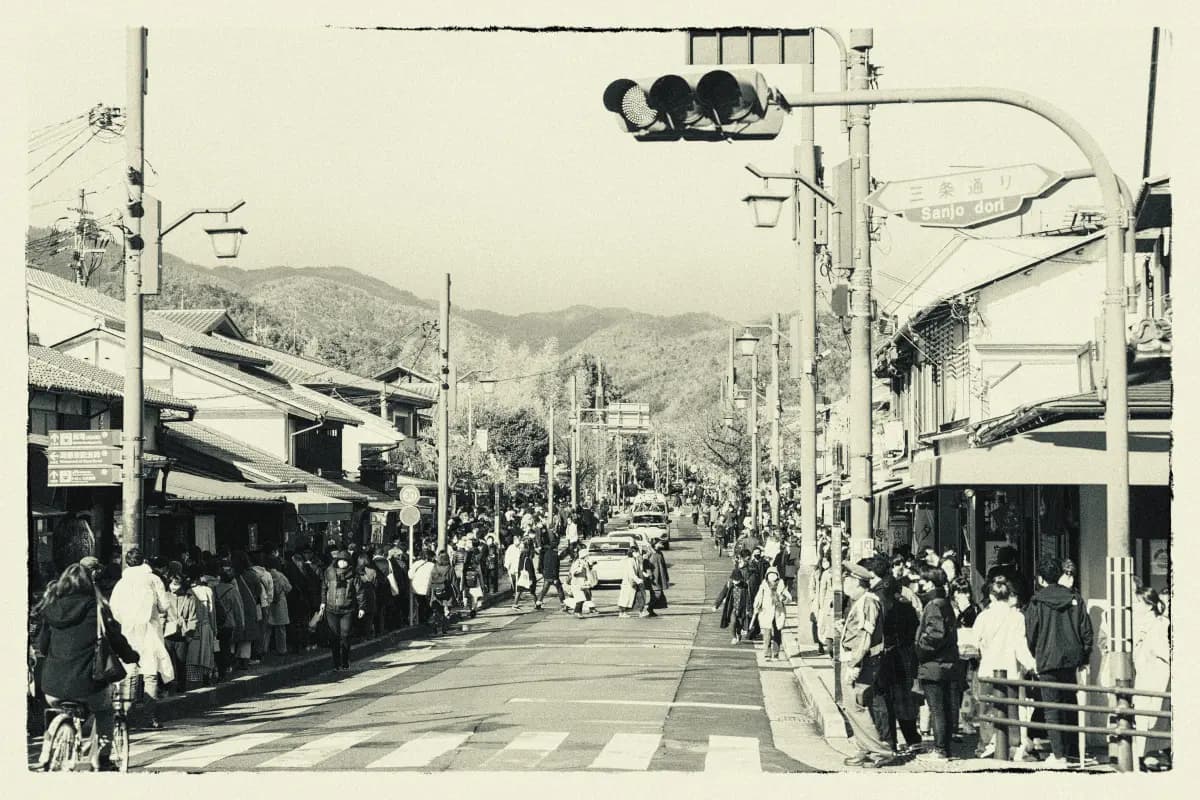
What you'll make
A restored copy of a treasured old photo, backed up in an album.
Outcome
A clearer version of an old photo, saved and shareable.
Before you start
- An old printed photo
- A phone camera
Old photos fade, crease, and scratch. A restoration app can gently sharpen and repair them — while you keep the original safe.
- 1
Photograph the print
In good, even light, take a straight-on photo of the old picture.
- 2
Restore it
Open Remini or MemoriesAI, choose the photo, and let it enhance.
- 3
Compare gently
Look at the before and after. If a face changed too much, keep the original as the true record.
- 4
Save to an album
Add it to a Google Photos album named for the family or year.
Example: a creased 1970s family portrait restored to a clean, sharable image.
Privacy
- Restoration tools upload your photo to process it — use images you're comfortable storing online.
- Keep the original print; the app makes a copy.
Safety
- Restored photos are an AI's best guess — small details may change. Keep the original as the record.
Accessibility
- Increase text size and use the phone's zoom to check details.
Made different for you
Why this is useful for you
Rescue precious family photos yourself, right from your phone.
This is done entirely on your phone. We'll go one careful step at a time.
→ A clearer copy of a treasured photo, saved safely.
Turn on larger text before you start.
Related tools
Next steps
Related resources
Start this project
Open SeishunAI with this project ready — no need to explain what you want.
Start this project →